Route 53 health checks monitor endpoint availability and enable automatic DNS failover. Set up health checks for primary and secondary resources, then create failover routing records that automatically redirect traffic when the primary becomes unhealthy. Supports endpoint checks, calculated checks (parent/child), and CloudWatch alarm-based checks.

Introduction
Route 53 health checks monitor an endpoint and let you fail DNS records over to a backup when the primary goes unhealthy. This post covers the three health check types (endpoint, calculated, and CloudWatch alarm-based), the difference between active-active and active-passive failover, and a working active-passive setup with two EC2 instances behind a single domain name.
The same approach works for AWS resources or anything else with a public IP - on-prem servers, third-party SaaS, etc. Route 53 doesn't care what's on the other end of the health check.
What is Amazon Route 53 Health Check
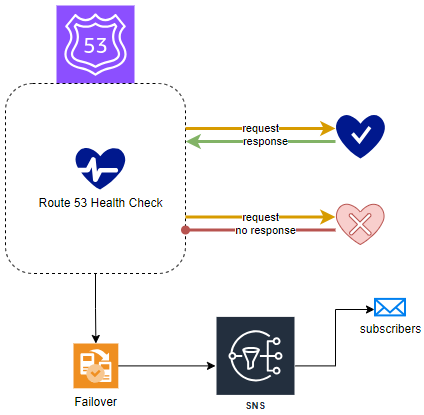
Route 53 health checks are designed to monitor the status of specific AWS resources or any endpoints capable of responding to requests. These checks not only send notifications (e.g. via SNS) upon any status change but also enable Route 53 to identify and reroute traffic away from resources that are not functioning optimally (e.g. failover).
Types of Route 53 Health Checks
Currently, three distinct types of Route 53 health checks are offered:
- Endpoint Health Checks - This is the most frequently utilized type, allowing for the monitoring of an endpoint specified by either an IP address or a domain name. Route 53 periodically sends automated requests to your application, server, or other resources to ensure they are accessible and functioning correctly.
- Health Checks Monitoring Other Health Checks - In this setup, a "parent" health check oversees the status of one or more "child" health checks. If the children maintain a healthy status beyond a predetermined threshold, the parent check is also considered healthy. Conversely, if too many child checks fail, the parent check is deemed unhealthy.
- Health Checks for Amazon CloudWatch Alarms - These health checks are tied to alarms set in the CloudWatch service, monitoring CloudWatch data streams linked to these alarms. If the CloudWatch alarm status is OK, the health check will also report as OK.
Use calculated health checks (parent/child) when you need to consider multiple endpoints as a single unit. For example, mark a web tier as unhealthy only when more than 50% of web servers fail.
Amazon Route 53 DNS Failover Routing
Failover routing in Route 53 enables the redirection of traffic from a primary region to a recovery region (or even intra-region) in case of failure. By setting up endpoints in both the primary and recovery regions under a single domain name, you can select a routing policy that determines the recipient of traffic for that domain. Traffic is automatically rerouted to the recovery area if the primary server is deemed unhealthy by the health checks.
Active-Passive versus Active-Active Failover
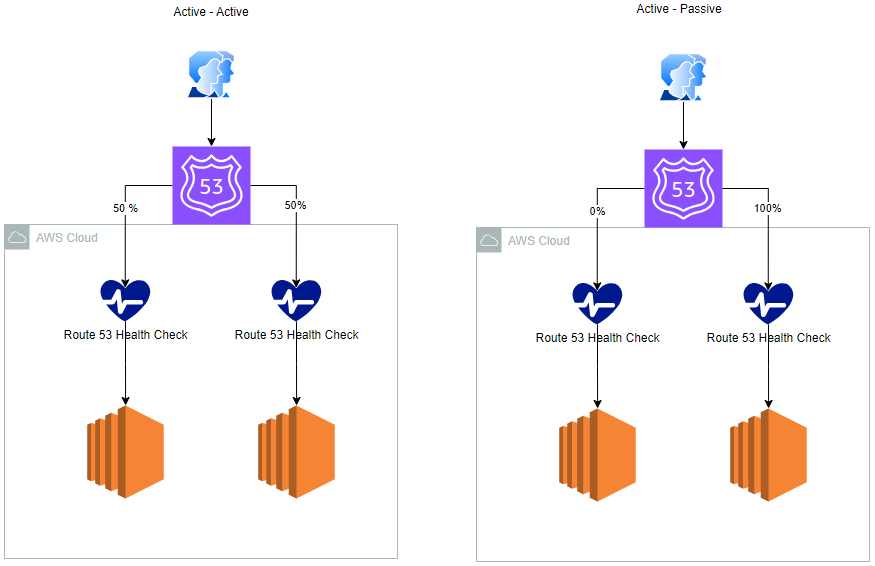
The key distinction between these architectures lies in their operational status. Active-active failover allows all resources across all regions to be accessible concurrently, making it ideal for scenarios where resource availability is a priority. In contrast, active-passive failover involves a primary resource or set of resources being actively available, with a secondary set on standby to take over in the event of a primary failure.
- Active-Active Failover - This approach ensures that resources in both regions 1 and 2 are always active and requests are sent to both evenly. Route 53 is capable of detecting unhealthy resources and excluding them from query responses, thereby maintaining continuous operation.
- Active-Passive Failover - This configuration is suitable when you prefer a primary resource or set of resources to be predominantly active, with a secondary set reserved for activation only upon the failure of the primary resources.
Active-active requires all resources to handle production traffic at all times. Active-passive is more cost-effective but may have longer failover times as secondary resources "warm up."
Demonstration
Logical
Players
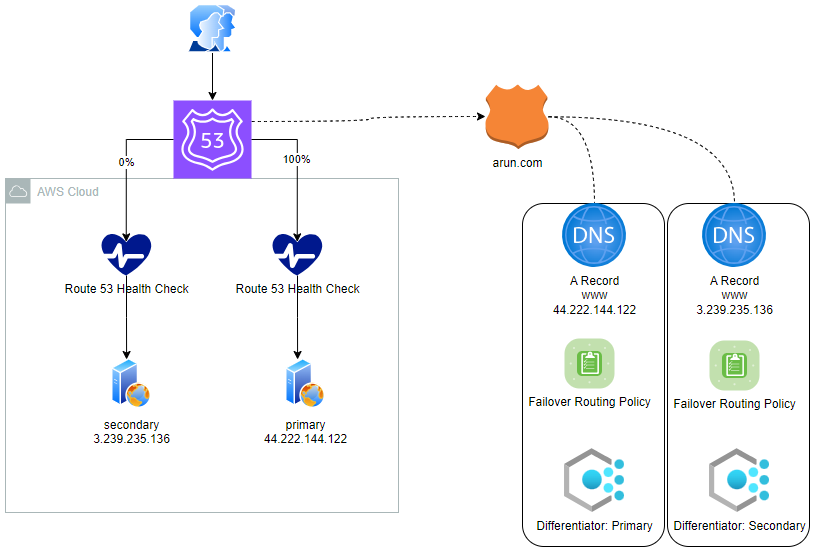
- EC2 in one zone with apache running with public access to http - Primary
- EC2 in one zone with apache running with public access to http - Secondary
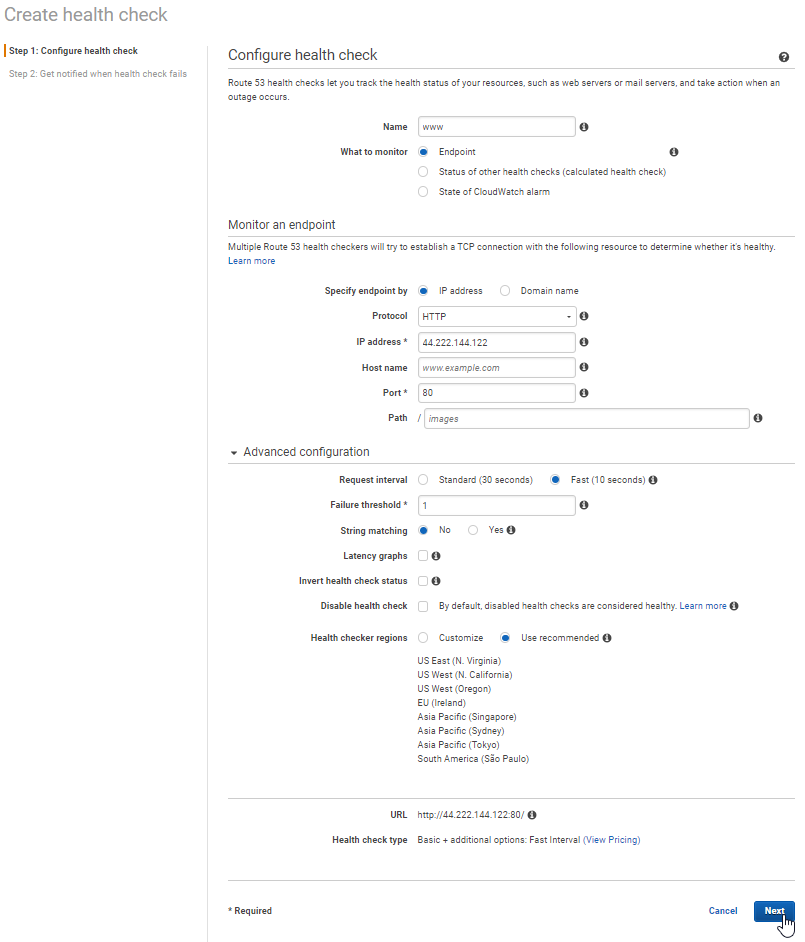
- Health Check 1 for my primary webserver
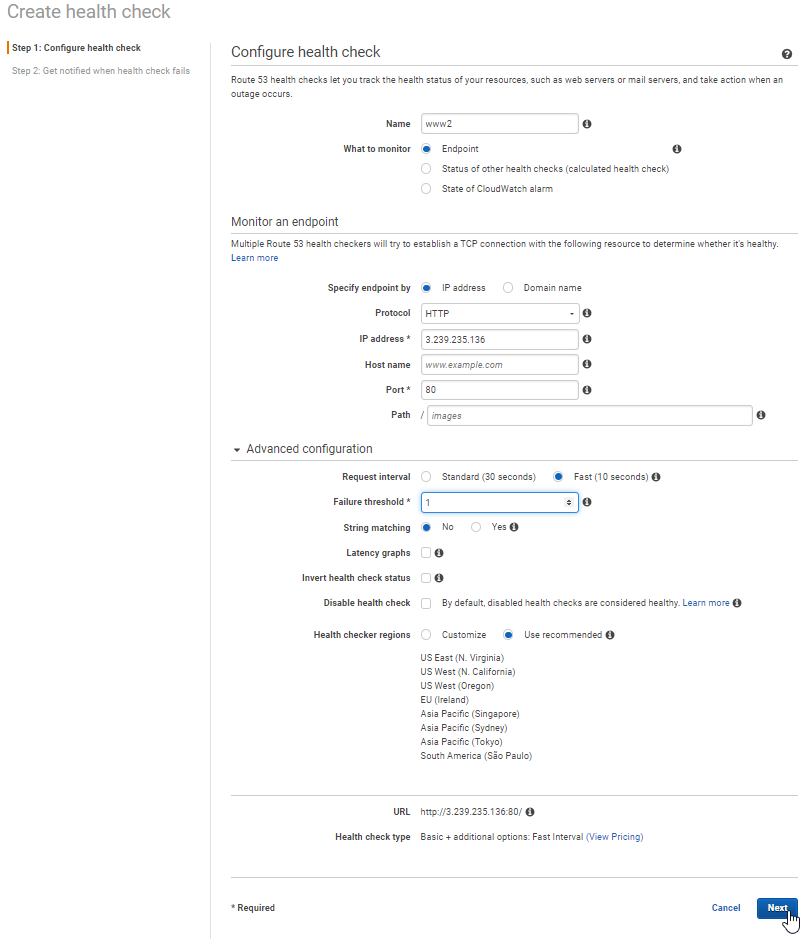
- Health Check 2 for my secondary webserver
- Route 53 Zone (Private but could be Public) called arun.com
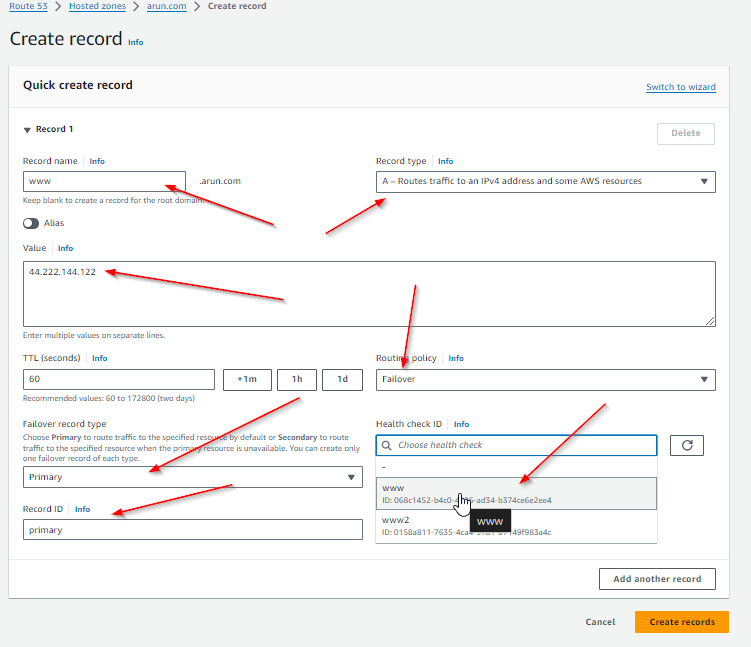
- Route 53 A record with name of www pointing to the public IP address of 44.222.144.122 with a failover routing policy with a primary record type linked to Health Check 1
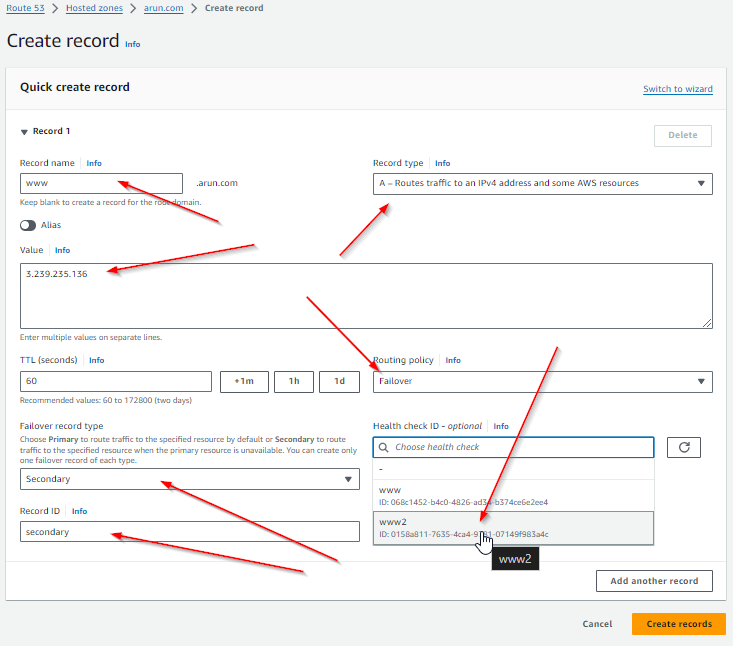
- Route 53 A record with name of www pointing to the public IP address of 3.239.235.136 with a failover routing policy with a secondary record type linked to Health Check 2
Steps
VPC
- Create VPC
- Create Internet Gateway (IGW) and attach to VPC
- Create public subnets
- Create public route tables with default route to IGW
EC2 - Primary
- Create EC2
- Install Apache:
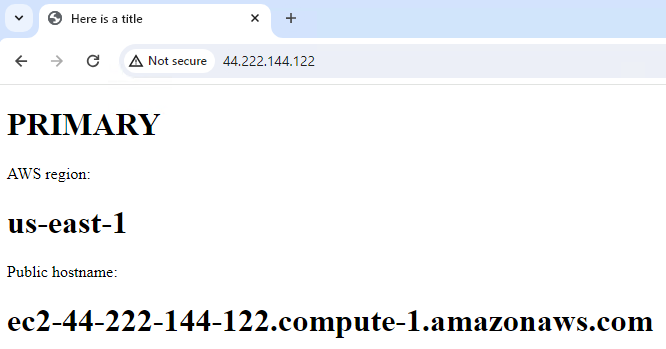
yum install httpd -y - Configure index.html: create file in /var/www/html such that it is distinct
- Start webservice:
systemctl start httpd - Browse to public IP address and confirm server is up and listening for http
EC2 - Secondary
- Create EC2
- Install Apache:
yum install httpd -y - Configure index.html: create file in /var/www/html such that it is distinct
- Start webservice:
systemctl start httpd - Browse to public IP address and confirm server is up and listening for http
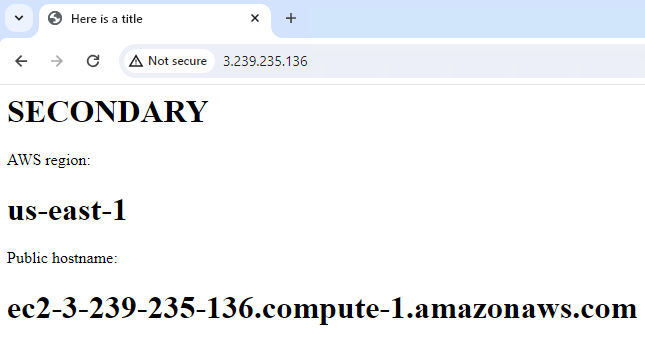
Ensure security groups allow inbound HTTP (port 80) from Route 53 health checker IP ranges. AWS publishes these ranges in the ip-ranges.json file under the ROUTE53_HEALTHCHECKS service.
Route 53
- Create zone
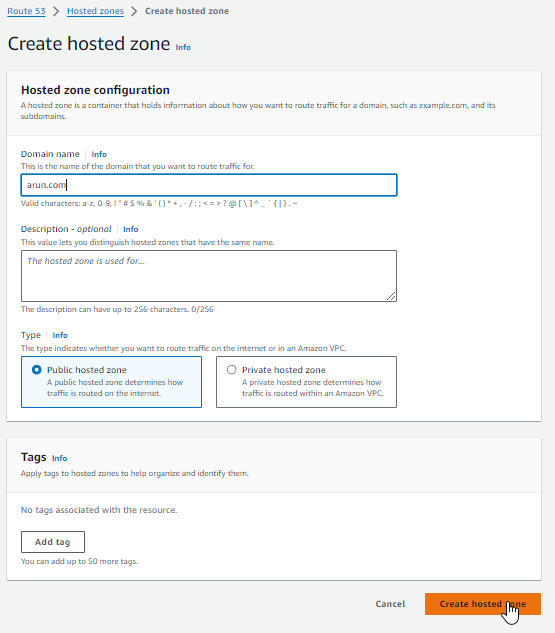
- Create Health Check 1
- Name could be anything you want to label it
- Endpoint monitor: Protocol: http, IP address: public IP address for primary server, Port: what port to monitor
- Create Health Check 2
- Name could be anything you want to label it, but be distinct from the first health check
- Endpoint monitor: Protocol: http, IP address: public IP address for secondary server, Port: what port to monitor
- Create the A Record for Primary
- Record name will be the same for both Primary and Secondary
- Record type will be A
- Value will be the public IP address for the Primary server
- Routing Policy will be Failover
- Failover record type will be Primary
- Health check ID will be the health check created for the primary server
- Record ID can be anything you want to label it
- Create the A record for Secondary
- Record name will be the same as Primary
- Record type will be A
- Value will be the public IP address for the Secondary server
- Routing Policy will be Failover
- Failover record type will be Secondary
- Health check ID will be the health check created for the secondary server
- Record ID can be anything you want to label it
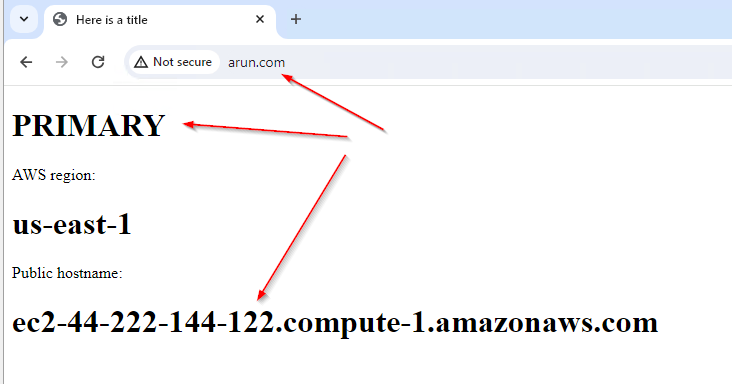
Test - During Non Disaster
- Browse to the A record
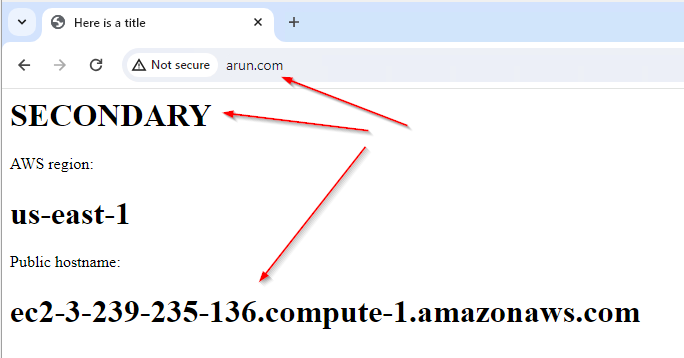
Test - During Disaster
- On primary EC2 stop the Apache service:
systemctl stop httpd - In Route 53 Health Checks, you will see the primary server health check show Unhealthy

- Browsing to the same A record will show you that the record was flipped to the secondary
Troubleshooting
- Health check shows unhealthy but endpoint works - Verify security groups allow inbound traffic from Route 53 health checker IPs. Check if you're monitoring the correct port and path.
- Failover not happening - Ensure the health check is associated with the DNS record. Check that "Evaluate Target Health" is enabled if using alias records.
- Intermittent health check failures - Consider increasing the failure threshold. Default is 3 consecutive failures; increase to 5 or more for flaky endpoints.
- DNS still returning old IP after failover - DNS caching at client or resolver level. Lower TTL values (60-300 seconds) for faster failover, but this increases DNS query costs.
- Health check costs too high - Use Standard health checks instead of Fast (30-second vs 10-second intervals). Reduce the number of regions performing checks.
- CloudWatch alarm-based health check not working - Verify the alarm is in the same region as the health check. Check that the health check has permission to read the alarm state.
Want Help With This?
If you're working on something similar and want a second set of eyes, or you'd like to talk through how this applies to your environment, reach out via the contact form. Happy to help.