Domain-joined Windows EC2 instances don't automatically register PTR records in Active Directory DNS reverse lookup zones. The root cause is a Windows registry path mismatch - the GPO DNS Client setting writes to HKLM:\SOFTWARE\Policies\... but the Windows DNS client only reads RegisterAdapterName from the adapter-specific GUID path under HKLM:\SYSTEM\CurrentControlSet\Services\Tcpip\Parameters\Interfaces\{GUID}. The fix is a 3-line PowerShell startup script deployed via GPO that uses WMI to set the correct registry key, combined with SSM Run Command to push to existing machines immediately. This post covers the full root cause analysis, step-by-step fix, Route 53 Resolver integration, and verification procedures.
The Problem
In an AWS environment with domain-joined Windows EC2 instances and Active Directory DNS, forward (A) records register automatically but PTR records do not. The reverse lookup zones in AD DNS remain empty regardless of GPO settings.
This matters because PTR records are used for:
- Reverse DNS lookups - resolving IP addresses back to hostnames
- Security logging and auditing - correlating IPs to machine names in SIEM tools
- Service authentication - Kerberos and some applications validate PTR records
- Troubleshooting -
nslookupon an IP returning a hostname is invaluable during incident response
The frustrating part: every GPO DNS Client setting appears correct, gpresult shows the policies applied, but PTR records never appear. No errors are logged anywhere.
Architecture Overview
Before looking at the fix, here's the AWS infrastructure involved in this setup:
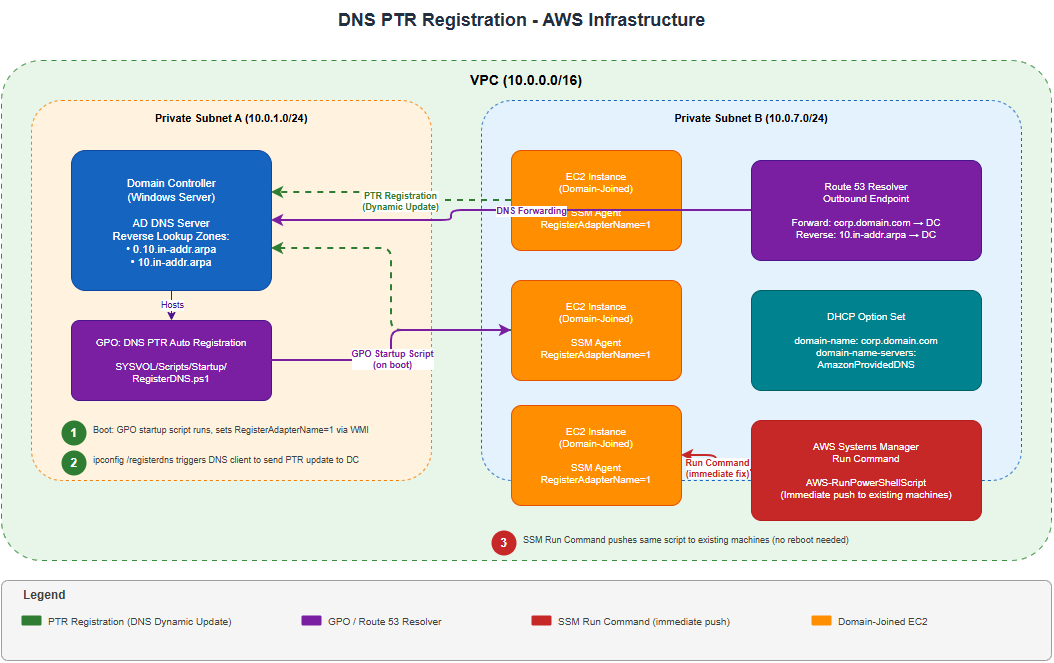
The diagram shows the two DNS routing approaches (DHCP Option Set vs. Route 53 Resolver Rules) and how Systems Manager pushes the fix to existing instances.
Root Cause
Windows has two separate registry paths for DNS registration settings:
| Registry Path | Written By | Read By DNS Client? |
|---|---|---|
HKLM:\SOFTWARE\Policies\Microsoft\Windows NT\DNSClient\RegisterAdapterName |
GPO DNS Client settings | No |
HKLM:\SYSTEM\CurrentControlSet\Services\Tcpip\Parameters\Interfaces\{GUID}\RegisterAdapterName |
WMI / NIC properties checkbox | Yes |
The GPO setting "Register DNS records with connection-specific DNS suffix" writes to the Policies hive, which the Windows DNS client ignores when deciding whether to register PTR records. The only reliable method is setting RegisterAdapterName = 1 in the adapter-specific GUID path, either programmatically via WMI or manually via the NIC checkbox "Use this connection's DNS suffix in DNS registration."
This failure is completely silent. There are no errors in Event Viewer, no warnings in gpresult, and no failed DNS update events. The Windows DNS client simply never attempts the PTR registration because it reads from a registry path that the GPO doesn't write to.
Additionally, AWS controls DHCP and does not natively support dynamic DNS updates, so PTR records are entirely dependent on the Windows DNS client initiating registration.
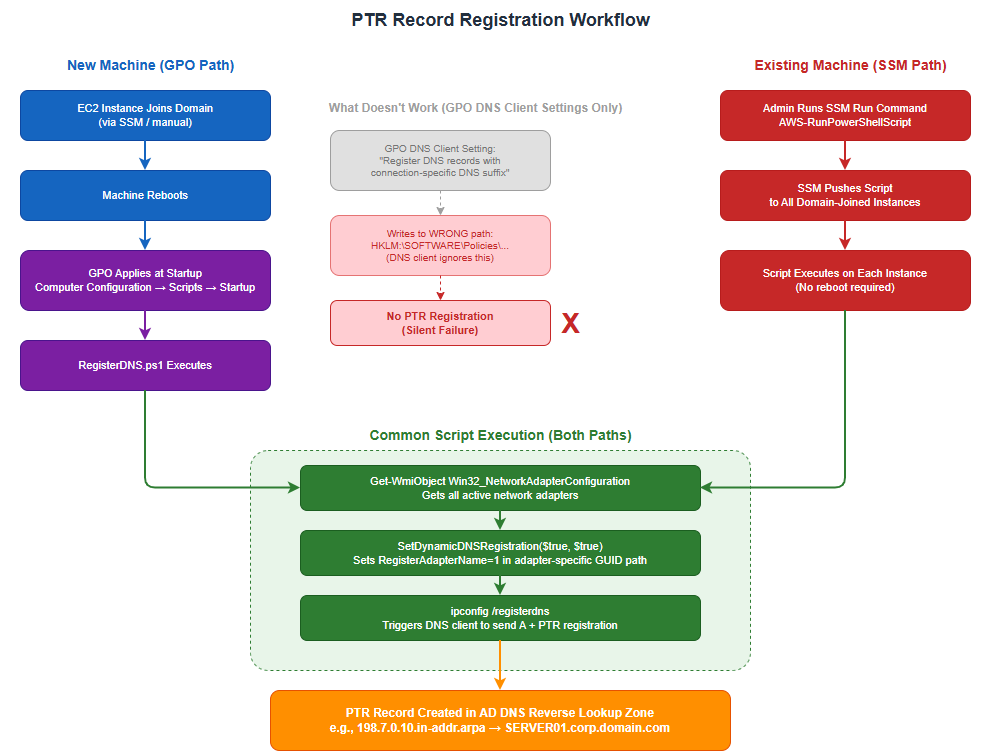
The Fix: PTR Registration Workflow
Here's the complete workflow from deploying the fix to PTR records appearing in DNS:
Prerequisites
Before implementing the fix, ensure these are in place:
- Active Directory with AD-integrated reverse lookup zones (created in the steps below)
- DNS routing configured so member servers' DNS queries reach the Domain Controller - use one of:
- Option A: Custom DHCP Option Set with
domain-name-serversset to your DC IP - Option B (recommended): Route 53 Resolver Rules - keep
AmazonProvidedDNSin DHCP, create an outbound endpoint, and add both a forward rule (corp.yourdomain.com → DC IP) and a reverse rule (10.in-addr.arpa → DC IP)
- Option A: Custom DHCP Option Set with
- DHCP Option Set
domain-nameset to your AD domain (e.g.,corp.yourdomain.com) - notec2.internal - Reverse lookup zones set to allow Secure dynamic updates
- Domain Computers group must have Create All Child Objects permission on the reverse lookup zones
- If using Route 53 Resolver Rules, the DC should have a forwarder set to
AmazonProvidedDNS(VPC base + 2, e.g.,10.0.0.2) so internet and AWS service DNS queries still resolve
Step-by-Step Implementation
Step 1a: Create the Reverse Lookup Zone
On the Domain Controller, open DNS Manager:
- Right-click Reverse Lookup Zones → New Zone
- Zone Type: Primary, AD-integrated
- Zone Name: Use your VPC CIDR (e.g., for
10.0.0.0/16use0.10.in-addr.arpa) - Dynamic Updates: Secure Only
- Click Finish
Verify via PowerShell:
Get-DnsServerZone | Where-Object {$_.IsReverseLookupZone -eq $true}Step 1b: Create the Parent Reverse Lookup Zone
This additional zone is required so the DC can properly respond to SOA queries for full PTR record names (e.g., 198.7.0.10.in-addr.arpa). Without it, the Windows DNS client cannot locate the authoritative server for the update and silently gives up.
Add-DnsServerPrimaryZone -Name "10.in-addr.arpa" -ReplicationScope "Domain" -DynamicUpdate SecureOr via DNS Manager:
- Right-click Reverse Lookup Zones → New Zone
- Zone Type: Primary, AD-integrated
- Zone Name:
10.in-addr.arpa - Dynamic Updates: Secure Only
- Click Finish
Step 2: Set Zone Permissions for Domain Computers
Open DNS Manager and for each reverse zone (0.10.in-addr.arpa and 10.in-addr.arpa):
- Right-click the zone → Properties → Security tab
- Click Add → type
Domain Computers→ OK - Grant Create All Child Objects permission (Full Control recommended)
- Click OK
Without this permission, registration will silently fail with no error logged anywhere. This is documented Microsoft behavior for Secure dynamic update zones. I spent hours troubleshooting before discovering the zone permissions were the missing piece.
Step 3: Create the PowerShell Script
This is the core fix - a 3-line script that bypasses the GPO registry path issue:
$adapters = Get-WmiObject Win32_NetworkAdapterConfiguration -Filter "IPEnabled = 'True'"
$adapters.SetDynamicDNSRegistration($true, $true)
ipconfig /registerdns
What each line does:
| Line | Purpose |
|---|---|
Get-WmiObject |
Gets all active network adapters |
SetDynamicDNSRegistration($true, $true) |
First $true enables A record registration; second $true enables PTR registration by setting RegisterAdapterName = 1 in the adapter-specific GUID registry path |
ipconfig /registerdns |
Triggers the DNS client to send both A and PTR registrations immediately |
SetDynamicDNSRegistration() is the supported WMI method that writes to the correct adapter-specific registry path. It automatically identifies the correct {GUID} for each active adapter, so you don't need to hardcode or discover interface GUIDs.
Step 4: Create the GPO
- Open Group Policy Management Console (
gpmc.msc) - Right-click the OU containing your member servers → Create a GPO and link it here
- Name it:
DNS PTR Auto Registration - Right-click the new GPO → Edit
Step 5: Add the PowerShell Startup Script
Navigate to: Computer Configuration → Policies → Windows Settings → Scripts (Startup/Shutdown) → Startup
- Double-click Startup → click the PowerShell Scripts tab
- Click Add → click Browse
- In the Browse window, create a new file called
RegisterDNS.ps1and paste the script from Step 3 - Select the file → click Open
- Leave Script Parameters blank
- Click OK → OK
The script file must be saved in the GPO scripts folder that the Browse button opens (inside SYSVOL). Do not reference a script stored elsewhere - it will not be accessible to member servers during startup.
Step 6: Enable PowerShell Script Execution via GPO
In the same GPO, navigate to: Computer Configuration → Policies → Administrative Templates → Windows Components → Windows PowerShell
- Open Turn on Script Execution → set to Enabled
- Select Allow all scripts
- Click OK
Step 7: Enable DNS Client Settings via GPO
These GPO settings alone do not trigger PTR registration due to the registry path issue described in the Root Cause section. The startup script in Step 5 is what actually fixes the problem. However, these settings are still recommended as additional policy enforcement and documentation of intent.
In the same GPO, navigate to: Computer Configuration → Policies → Administrative Templates → Network → DNS Client
Enable the following settings:
- Dynamic Update → Enabled
- Register PTR Records → Enabled
- Register DNS records with connection-specific DNS suffix → Enabled
- DNS suffix search list → add your domain (e.g.,
corp.yourdomain.com)
Step 8: Verify SYSVOL Contains the Script
Run on the Domain Controller:
Get-ChildItem "\\yourdomain.com\sysvol\yourdomain.com\Policies\{GPO-GUID}\Machine\Scripts\Startup"You should see RegisterDNS.ps1 listed. Also verify the psscripts.ini file exists and contains:
[Startup]
0CmdLine=RegisterDNS.ps1
0Parameters=
Step 9: Push to Existing Machines via SSM Run Command
For machines already running, use AWS Systems Manager Run Command to push the fix immediately without waiting for a reboot:
- Go to AWS Console → Systems Manager → Run Command
- Select
AWS-RunPowerShellScript - Paste the script:
$adapters = Get-WmiObject Win32_NetworkAdapterConfiguration -Filter "IPEnabled = 'True'"
$adapters.SetDynamicDNSRegistration($true, $true)
ipconfig /registerdns- Target: Select all domain-joined instances (use tags or resource groups)
- Click Run
This handles existing machines immediately. New machines joining the domain will be handled automatically by the GPO startup script on their first boot.
Step 10: Verify PTR Records Are Populating
Run on the Domain Controller:
Get-DnsServerResourceRecord -ZoneName "0.10.in-addr.arpa" -RRType PtrYou should see PTR records for each machine that has rebooted or had the SSM command pushed.
Verification Commands
Confirm the Registry Fix on a Target Machine
Get-ChildItem "HKLM:\SYSTEM\CurrentControlSet\Services\Tcpip\Parameters\Interfaces" |
ForEach-Object {
    $val = Get-ItemProperty $_.PSPath -Name RegisterAdapterName -ErrorAction SilentlyContinue
    if ($val) {
        Write-Host "$($_.PSChildName): $($val.RegisterAdapterName)"
    }
}
The active adapter should show a value of 1.
Check DNS Audit Log for PTR Events
Get-WinEvent -LogName "Microsoft-Windows-DNSServer/Audit" -MaxEvents 10 | Format-List TimeCreated, MessageLook for Event ID 519 (record created), type 12 (PTR record).
Test Reverse Lookup
nslookup 10.0.7.198

Name:    SERVER01.corp.yourdomain.com
Address:  10.0.7.198
Route 53 Resolver Rules: Additional Configuration
If using Route 53 Resolver Rules instead of pointing DHCP directly to the DC, there are additional requirements:
Required Resolver Rules
You need two resolver rules:
| Rule | Domain | Target |
|---|---|---|
| Forward | corp.yourdomain.com |
DC IP (port 53) |
| Reverse | 10.in-addr.arpa |
DC IP (port 53) |
DHCP Option Set Configuration
| Setting | Value |
|---|---|
domain-name |
corp.yourdomain.com |
domain-name-servers |
AmazonProvidedDNS |
DC Forwarder
Set-DnsServerForwarder -IPAddress "10.0.0.2"This points the DC to AmazonProvidedDNS (VPC base + 2) so internet and AWS service DNS queries still resolve.
The GPO startup script is still required when using Route 53 Resolver Rules. The resolver rules only handle routing the DNS request to the DC. The Windows client-side RegisterAdapterName setting is still needed to make Windows send the PTR registration in the first place.
Troubleshooting
| Symptom | Likely Cause | Fix |
|---|---|---|
| A records register but PTR records don't | RegisterAdapterName not set in adapter GUID path |
Run the WMI script via SSM or GPO startup |
| Neither A nor PTR records register | DNS queries not reaching the DC | Verify DHCP Option Set or Route 53 Resolver Rules |
| PTR registration attempted but fails (Event ID 520) | Zone permissions missing for Domain Computers | Add Create All Child Objects on both reverse zones |
| PTR works for some subnets but not others | Missing parent 10.in-addr.arpa zone |
Create the parent zone per Step 1b |
| SSM Run Command fails | SSM agent not installed or IAM role missing | Ensure AmazonSSMManagedInstanceCore policy is attached |
| Script runs but no PTR appears | DC forwarder not set (Route 53 setup) | Set DC forwarder to VPC base + 2 (e.g., 10.0.0.2) |
Want Help With This?
If you're working on something similar and want a second set of eyes, or you'd like to talk through how this applies to your environment, reach out via the contact form. Happy to help.
References
- AWS Active Directory Implementation Whitepaper
- AWS Blog - Active Directory Domain Services Integration with Route 53
- AWS Blog - Integrating Directory Services DNS with Route 53 Resolvers
- Microsoft - Dynamic DNS Update in Windows Server
- Microsoft - Troubleshooting DNS Dynamic Update Issues
- Microsoft - Enable or Disable DNS Dynamic Registration (RegisterAdapterName)